Product Updates
PanelWave Now Works With Your AI Assistant
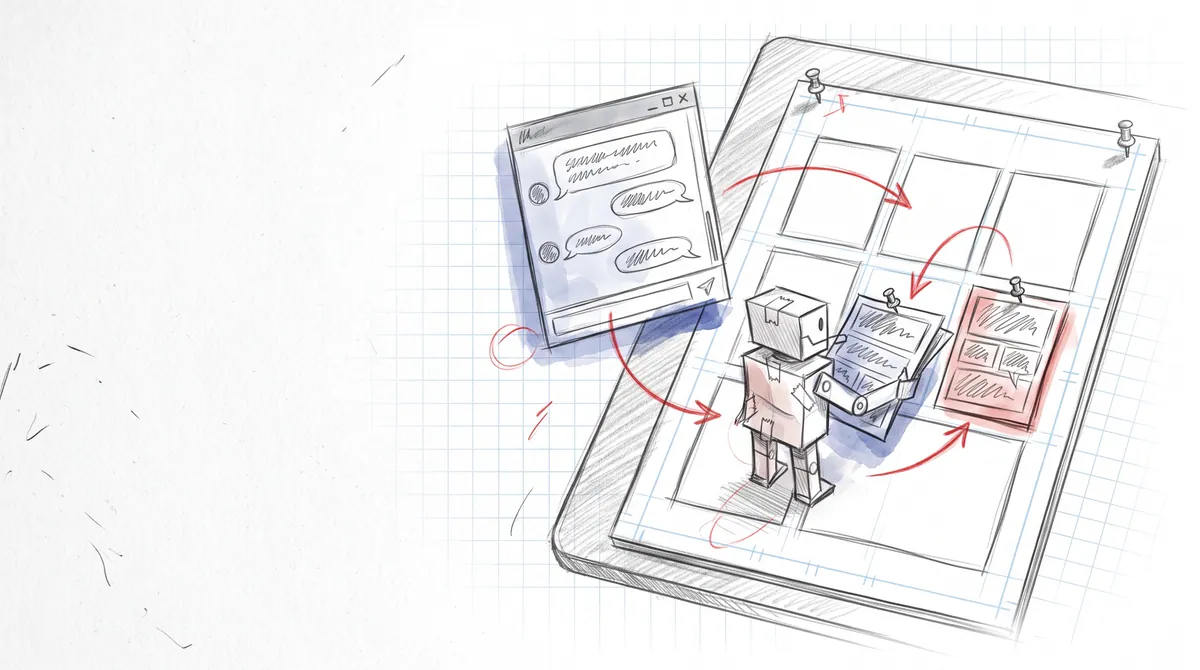
PanelWave has an MCP server. Connect Claude, ChatGPT, Cursor or any other MCP client and let it turn a script into a work, attach your artwork, letter panels, translate, check and publish — as you, with only the permissions you grant.
Making an interactive graphic novel is mostly art — and a surprising amount of structure around it. A script has to become chapters, pages and panels. Hundreds of balloons need lettering. Every image has to land on the right panel, the story graph has to connect, the text has to go into other languages, and the whole thing has to pass its checks before it can be published.
As of today, you can hand that structural work to your AI assistant. PanelWave now has an MCP server, so Claude, ChatGPT, Cursor and other assistants can work in the studio with you.
What MCP is
The Model Context Protocol is an open standard for connecting AI assistants to other applications. An assistant that speaks MCP can discover what an application offers and use it on your behalf — the way you would use its interface, just by asking in plain language.
PanelWave's MCP server offers 81 tools that cover the whole authoring process, from the first outline to the published release. The tool reference lists every one of them.
From a script and a folder of art to a work
Here is what a session looks like when you arrive with a finished script and a folder of panel images:
- "Turn this script into a PanelWave work, one panel per shot, with mobile and A4 pages." The assistant reads the script, shows you a dry run of the structure, and creates the chapters, pages, panels, characters and speech balloons — with the story graph already linked, so every chapter is playable.
- "Upload the images in my panels folder and attach panel-01 to the first panel, panel-02 to the second, and so on." Files that are already in your library are reused. Each panel fits itself to its image on every page format.
- "Add German and French and translate everything." Machine translations are written back but stay marked for review.
- "Check the work and fix what you can." Preflight runs with its automatic fixes; what is left is explained.
- "Publish a preview link." You read the result in the player, fix what you want by hand in the editor, and publish when you are happy.
Everything else it can do
- Edit works, chapters, pages and panels: create, rename, reorder, move, duplicate, delete
- Letter many panels in one go, edit layers, hotspots, characters, variables and the story graph
- Organise the asset library into folders and follow background jobs such as transcoding
- Answer questions about your works: which panels still lack artwork, what your plan allows, how a chapter performs with readers
You stay in control
An assistant that can publish your work needs clear limits. These are built in:
- It works as you. Every action uses your own sign-in, so your team role and your plan limits apply exactly as in the editor.
- You choose the permissions. When you connect an app, a consent screen lists what it asks for — untick anything you do not want, such as publishing.
- It asks first. Deleting chapters, pages, panels or assets, moving a work to the trash, publishing to production and rolling back all need your confirmation.
- Every action is logged, with the app, the work and the outcome — never the text you sent.
- You can disconnect at any time under Profile → Connected apps & access tokens. Changing your password ends all connections at once.
How to connect
In Claude (claude.ai, Claude Desktop, Cowork) or ChatGPT, add PanelWave as a custom connector with this address, sign in to PanelWave and choose the permissions:
https://mcp.panelwave.org/mcp
In Claude Code it is one command; Cursor, VS Code and other MCP clients take the same address in their configuration. Step-by-step guides for each client are in the docs: Connect Claude, Connect ChatGPT and Claude Code, Cursor and others.
claude mcp add --transport http panelwave https://mcp.panelwave.org/mcp
Why this matters
We built PanelWave around an open format so that your work is never locked into one tool. MCP extends the same idea to how you work: the studio is no longer only a set of screens, it is a set of capabilities any assistant can use for you. The editor stays the place where you look, judge and fine-tune — the repetitive parts can now be delegated.
Try it with a small request first — "Which PanelWave works do I have?" — and then give it a chapter. We would love to hear what you build: get in touch.