Technical
Accessibility by Default: What It Means for PanelWave
Keyboard navigation, screen readers, reduced motion, content warnings: why we built these into the format, the player and the CMS from day one instead of bolting them on, what a reader actually gets, what a creator has to do, and what is still open.
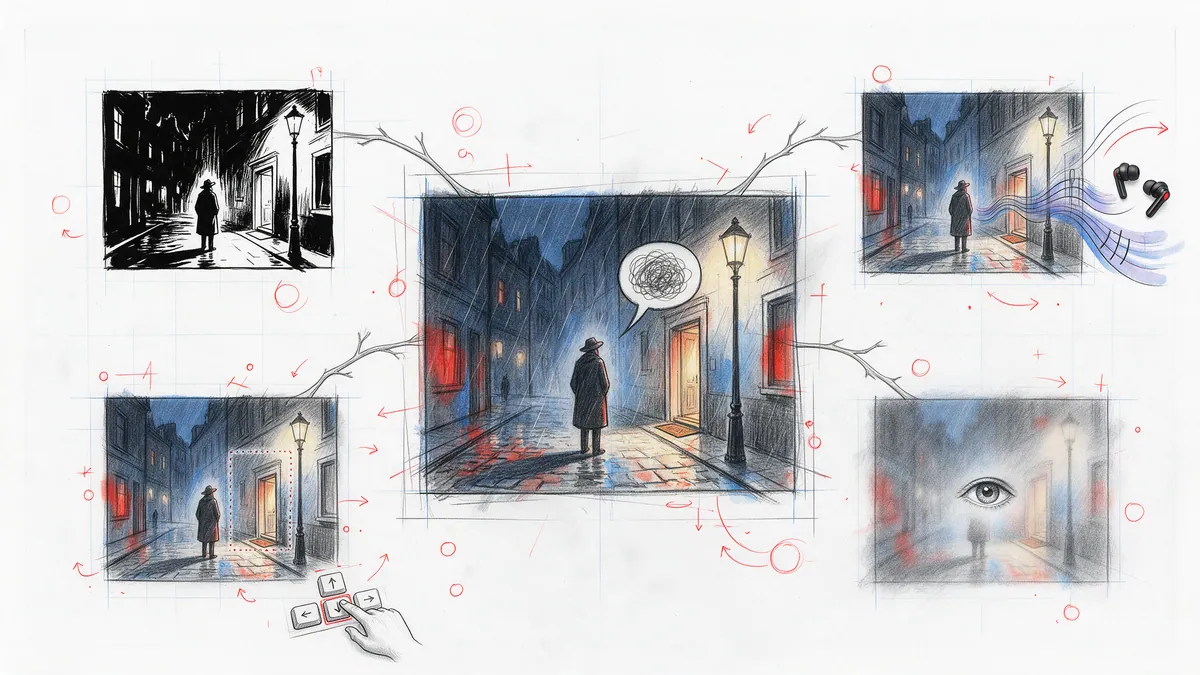
Accessibility in most reading apps is a settings page. In PanelWave it is a property of the format. That difference sounds abstract until you see what it buys: alt text that is translated because all text is translated, reduced motion that works because transitions are data, and a graphic novel that a keyboard user can read start to finish because the story is a graph a keyboard can walk. This post explains how accessibility runs through the three layers, from the manifest to the player to the CMS, what it does for readers, what it asks of creators, and where the gaps still are.
It starts in the format
The manifest carries accessibility information as first-class fields, not as an optional annex. Every catalog asset can have alt text, a caption, and a transcript for audio and video, and all three are LocalizedStrings, so screen-reader output follows the reader's language exactly like the dialogue does (Assets, Localization). A panel has a description that is read aloud in place of the artwork and an accessibility block with an alternative description of the whole panel (AccessibilityHints). A hotspot carries its own ARIA label, so an interactive region announces what it does rather than where it is (Hotspots).
Content warnings are declared once in the work's metadata with a localized label and a defaultBlur flag, then referenced by id from each panel they apply to (ContentWarning). Because the declaration is in the format, any reader implementation can honour it, not only ours. That is the recurring pattern: put the information where every tool can see it, and accessibility stops depending on which app opens the file.
What a reader gets in the player
The open-source player turns those fields into behaviour. Every toolbar button carries a translated aria-label and toggles expose aria-pressed. The viewport is a labelled region that keyboard users activate with Enter or Space; in page view each placed panel is a focusable button with a visible focus indicator. Arrow keys move through the story, T toggles the toolbar, Escape closes modals, and shortcuts are ignored while the reader is typing in a field (Accessibility, Input methods).
Hotspots, the interactive regions a creator draws, sit in the tab order: Tab moves between them, Enter or Space activates, and each announces its localized label. Sighted readers see a gentle pulsing outline to discover them; under reduced motion the pulse is off and the outline appears on hover and focus instead (Interactive hotspots).
Reduced motion is honoured from two sources, the operating system's prefers-reduced-motion setting and the host's reducedMotion input, and it changes more than animation speed. Transitions between panels are disabled, on-view video autostart degrades to click-to-play, and in canvas view the camera never glides: reframes are instant with a short cross-fade, and an authored fallback transition takes precedence when the creator supplied one. Panels that are not current carry aria-hidden and inert, so a virtualized canvas never traps focus, and screen readers follow the graph's linear order while the canvas remains presentation only (Canvas View, Configuration).
Readers also get direct controls. The settings modal offers manga mode for right-to-left reading, reduced motion, and high contrast, alongside speech bubbles, audio and autoplay timing, with a reset to defaults (Settings modal). Language switching is an accessibility feature too, and it is instant: text, balloons, localized assets and audio re-resolve without a reload (Player localization).
How we keep it that way
Claims like the ones above decay unless something checks them. The player's Playwright end-to-end suite runs axe-core against panel view with the toolbar open, page view, and the language modal, and fails on serious violations; the reports are attached to every run. Keyboard navigation and reduced-motion behaviour have their own specs. The suite runs across desktop and mobile browser projects as part of continuous integration (Development: testing). It is not a substitute for testing with a screen reader, which we also do by hand before releases, but it stops regressions from shipping quietly.
What a creator has to do
The format can only carry what an author writes, so the CMS makes the writing part of the normal workflow rather than a separate audit.
None of this requires knowing what ARIA stands for. The fields are where the content is, the check runs before publishing, and the fix is a link away.
- Describe your panels. The panel inspector's Title and Description are edited per locale; the description is what screen readers read, so one sentence about what happens in the panel makes the work accessible to blind and low-vision readers (Panel properties).
- Give artwork alt text. Set it once on the asset through Edit Metadata, or on the layer in the inspector's A11y tab; the same tab covers captions for audio and video and the accessibility of interactive elements (Alt text and accessibility, Right inspector).
- Label your hotspots. Every hotspot has a per-language Label and an ARIA Label field in Basic Properties (Naming and accessibility).
- Tag sensitive content. Content warnings are set per panel from the structure tree or the Content Settings section, and the tree shows a W badge on every tagged panel (Pages and Panels).
- Run Preflight. The Accessibility category flags image layers without alt text and audio without captions; missing alt text is a warning, a missing caption is an error that blocks publishing. Each issue links to the panel that uses the asset and to the code reference (Validation, Missing alt text, Missing caption).
The authoring tool has to be accessible too
A creator with low vision or a motor impairment should be able to make an accessible comic, not only consume one. The editor has an app-wide focus-visible standard, focus traps on every dialog, ARIA semantics on the structure tree with full arrow-key navigation, and a keyboard shortcuts overlay behind the question mark key (Shortcuts). The command palette on Ctrl+K reaches most editor actions without a mouse, and a keyboard layer navigator announces layers to screen readers as you cycle through them. Themes include System, Light, Dark and a High Contrast palette that applies to both the app and the editor canvas chrome (Account: theme). The high-contrast theme shipped this month alongside a set of shared UI primitives, and it is the one we expect to refine most as feedback arrives.
Age gates and paywalls, respectfully
Comfort is not only about motion and contrast. Where a work needs an age check, the player provides an age gate component with a configurable minimum age and message, and the decision is delegated to the host's entitlement adapter, which can verify age or fall back to a read-only user variable seeded at startup. Without either, the gate denies rather than guesses (Paywall and Entitlement). Paywall overlays follow the same rule: the reader is told clearly what is gated and why, in their language, and the story never silently skips content.
What is still open
We list these because an accessibility claim that hides its gaps is worth less than one that names them.
- Preflight does not yet emit every check it lists. Localization completeness and per-bubble audio coverage are shown as categories but their issue codes are still planned; alt text and captions are live (Validation codes).
- Three settings checkboxes are stored, not yet applied. The toolbar's Audio and SFX toggles now act: Audio mutes the whole player including video sound, SFX mutes the effects bus, Speech also silences voice-over, and all three remember your choice (Toolbar controls). The settings modal's manga mode, reduced motion and high contrast checkboxes are persisted but the shell does not act on them yet; reduced motion is honoured from the operating system setting and the host's input instead.
- Content-warning presentation is per implementation. The format declares the warning and whether a panel should be blurred by default; how a player presents the opt-in is the player's job, and ours is still being refined against real works.
Why from day one
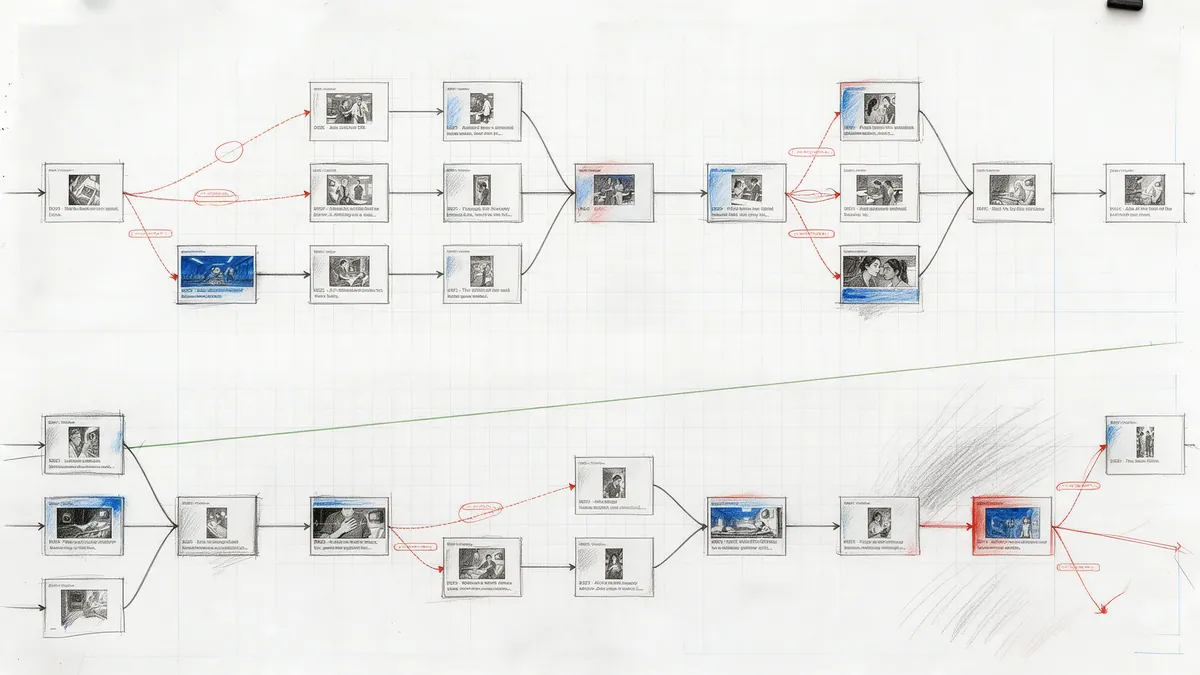
Retrofitting accessibility means touching every layer at once: the format has to grow fields, the player has to read them, the authoring tool has to collect them, and existing works stay inaccessible until someone goes back. Building it in from the start turned most of it into consequences of decisions we had already made. Alt text is localized because everything is a LocalizedString. Reduced motion is reliable because a transition is a data field an engine can skip. Keyboard traversal is complete because the story is a graph with a defined next and previous. The story graph, the localization model and the accessibility fields were designed together, and that is the sense in which accessibility is a default here rather than a feature.
Further reading
- Reader Interface: every control, input method and accessibility behaviour in the player.
- Panels and Assets: the accessibility fields in the format.
- Validation and Preflight: the checks that run before publishing.
- Why Graph-Based Navigation?: the model that makes keyboard traversal complete.